
Before you begin
Open the page in its original project. You need permission to manage the page’s sharing. For a selected target project, the sharing control lists projects where you have an Owner or Admin role; making a page available across the organization is reserved for organization Owners.Share with another project
Suppose a document belongs to Operations and a colleague works in Planning, another project in the same organization.- In Operations, open the document and choose Page actions → Sharing.
- Select Share with projects. Under Projects, select Planning. At least one project is required for this option.
- Close the dialog and wait for the page’s Saved status. Ask the colleague to select Planning and open the shared page. They should be able to find and view it if their access permits; sharing does not itself grant editing rights.
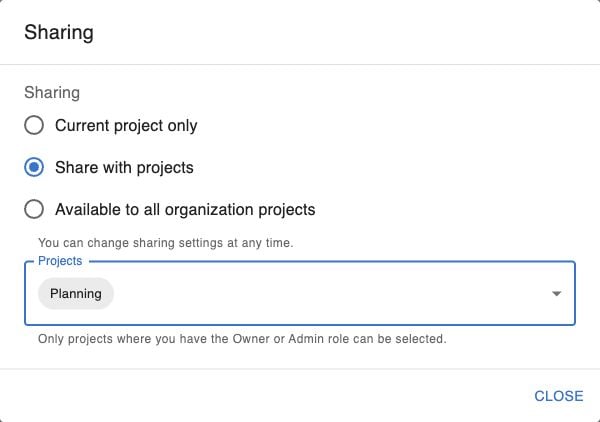
Choose or restrict the scope
To remove Planning from the example, return to Page actions → Sharing and remove it from Projects. If no other project needs access, choose Current project only. Close the dialog, wait for Saved, and ask the colleague to check access again in Planning. Removing a shared scope does not remove copies previously downloaded or otherwise saved by recipients.
For membership and role management, see Members and permissions and Organizations and projects.